Migrate From TYPO3 to Webflow in 2026: Everything You Need to Know + Step-by-Step Guidelines
TYPO3 is a powerful CMS, but it's often a pain to maintain. If your team wants to publish faster, launch campaigns with less friction, and stop relying on developers for every small change, Webflow might be the better fit. But the migration takes planning, a clean content audit, proper redirects, and a well-prepared Webflow CMS.
Across the DACH region, TYPO3 has served companies well for years. Especially in the mid-market, larger enterprises, and the higher education sector, the system is well established. It can handle complex permissions, large page trees, and multilingual structures, and it's known for being very secure.
But more and more teams are starting to feel it: the website doesn't feel like a useful tool anymore. It feels more like a backlog. Every new landing page needs a ticket. Small text changes go through developers. Releases take longer than marketing can actually afford.
Webflow doesn't solve this with a magic button. In a glance, the switch from TYPO3 to Webflow might seem like a complicated migration project. But if you approach it systematically, your team will end up with significantly more control and the ability to respond more flexibly to current market conditions.
{{freebie}}
Why migrate from TYPO3 to Webflow?
The requirements for company websites have changed a lot. A few years ago, a web presence was often just a digital brochure or a business card, mostly static in nature. You'd update it every few months, rarely add new content, and barely touch anything technical.
Today, marketing works very differently. Campaigns run faster. Content changes more often. Teams test landing pages, adjust copy, publish case studies, and want to update forms without long approval chains. Increasingly dynamic market conditions demand equally flexible approaches to digital customer acquisition and retention.
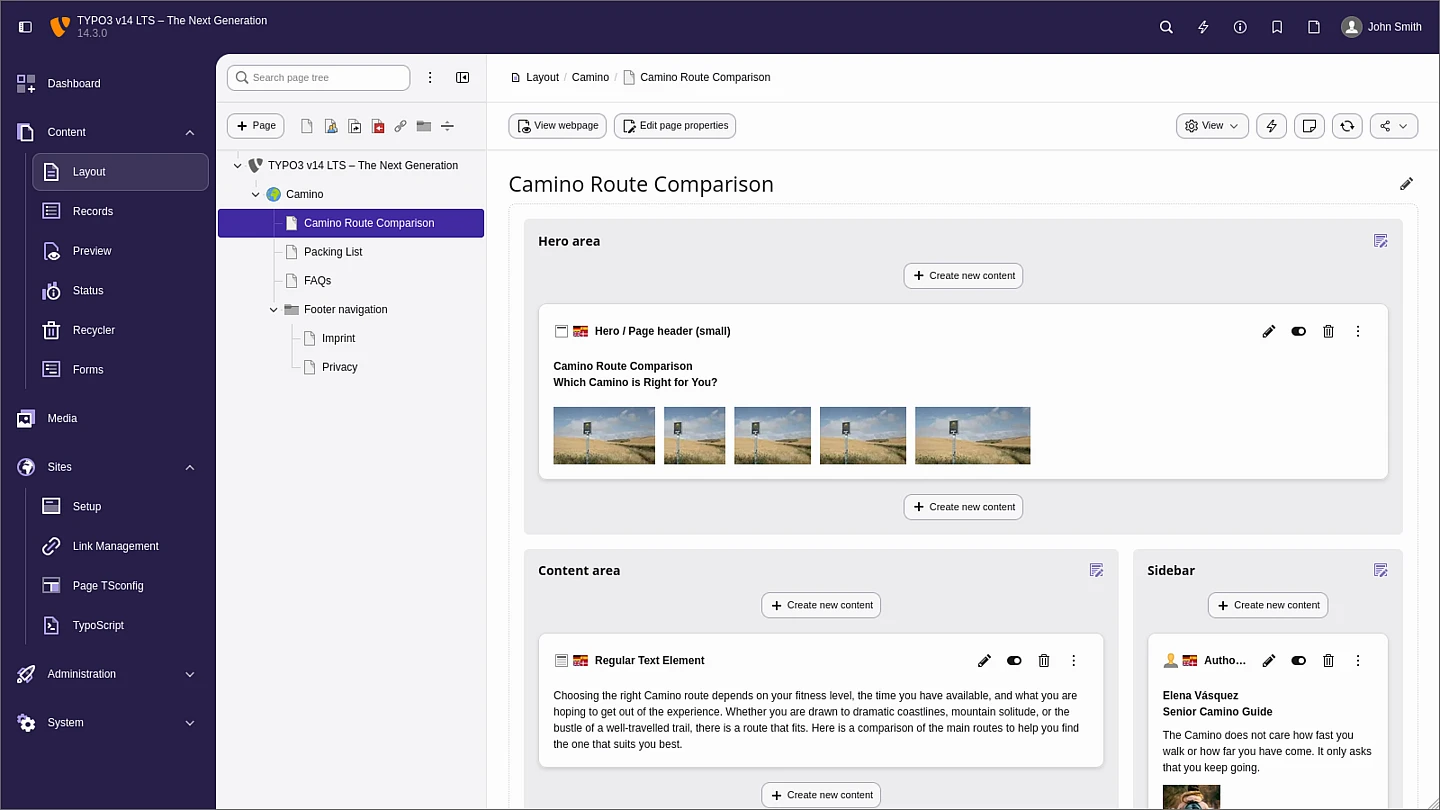
TYPO3 can do all of this, but in many long-standing installations, it gets tedious. Design, content, extensions, roles, and custom technical solutions are often tightly coupled. A small overhaul then creates more work than it should.
Here are the things that bother teams the most:
- Your team needs outside help for small adjustments.
- Updates, maintenance, and extensions cause ongoing costs.
- Editors struggle to find their way around old TYPO3 structures.
- Creating new pages requires too many approval rounds.
- Old templates slow down mobile optimization and campaign work.
But the biggest disadvantage isn't always the immediate technical weakness or the cost. The missed opportunities can be far more critical. A campaign goes live late. A product launch doesn't get its own landing page. An old form stays online because nobody can optimize it quickly. These small blockers add up and noticeably slow down marketing, sales, and ultimately growth.
Webflow is a better fit for companies that want to actively use their website as a modern marketing channel. The visual builder combines design, CMS, and hosting in one environment. After a bit of training, marketing teams can maintain pages themselves, swap content, and create new CMS-based sections.
.webp)
That doesn't mean TYPO3 is bad. TYPO3 remains strong if you need very granular permissions, deep system customizations, self-hosting, or particularly large multilingual structures. But for many marketing websites, the effort outweighs the benefit.
Talking about design and customization, we recently published this blog on using Claude Design to design landing pages. Give it a read.
Webflow vs. TYPO3: key differences at a glance
| Area | TYPO3 | Webflow |
|---|---|---|
| Day-to-day usability | Powerful, but often technically demanding | Visual builder with direct page preview |
| Developer dependency | High for many types of changes | Content can be managed independently, and new pages can be built using components |
| Maintenance | Updates, extensions, and hosting all need active management | Hosting, security updates, and platform operations are handled centrally by Webflow |
| Campaign speed | New landing pages often need technical approvals | Marketing can publish pages and content flexibly, based on pre-built components |
| Design freedom | Strong, but usually template- and developer-dependent | Very flexible in the visual design process |
| CMS structure | Powerful, complex, and often shaped by legacy decisions | Clearly manageable through collections, fields, and templates |
| Roles and permissions | Very finely configurable | Good for cleanly separating design, development, marketing, and content; larger teams get additional control and security features through Webflow Enterprise |
| Multilingual support | Strong for large, complex setups | Natively supported with Webflow Localization (including AI translation) |
| Self-hosting | Fully possible | No real self-hosting. It's a hosted platform, and only static code export is possible (without CMS and dynamic features). |
| Performance | Heavily depends on setup, hosting, and implementation | Modern delivery through Webflow hosting and CDN |
| Technical extensibility | Very high through extensions and custom development | Good through integrations, custom code, and external tools |
| Editorial workflow | Can feel clunky depending on the system's age | Usually easier for marketing teams to understand |
The migration from TYPO3 to Webflow usually makes the most sense when your website primarily supports your marketing, sales, and overall communications. Webflow doesn't take every technical decision off your plate. But the platform shifts many tasks out of development and into a more manageable website system.
TYPO3 to Webflow: step-by-step migration
As mentioned earlier, there's no "magic switch" for TYPO3 to Webflow. The migration involves both manual and automated steps. Some content can be exported and prepared. But design, CMS structure, templates, and quality assurance all require careful hands-on work.
Here's how the migration typically works in practice:
- Plan the migration scope and define goals
- Conduct an audit and inventory in TYPO3
- Plan the Webflow CMS structure
- Export and prepare data from TYPO3
- Rebuild the website in Webflow
- Migrate content and test
- Launch and monitor
If you can handle these steps internally, a migration without an agency is absolutely possible. But for larger TYPO3 setups, it's often worth getting outside help because the content audit, CMS structure, redirects, testing, and launch all need to come together cleanly. An experienced Webflow agency like magier can structure the process through extensive project experience and take the load off your team, without taking control away from you.
1. Plan the migration scope and define goals
Don't start with the export. Start with the question: what actually needs to be migrated? Many old TYPO3 websites contain sections that nobody uses anymore.
First, define which page types need to be rebuilt in Webflow. These typically include the homepage, service descriptions, the blog, case studies, the careers portal, important landing pages, downloads, and contact information.
After that, define the scope:
- Which languages should be carried over?
- Which forms does the new site need?
- Which media, PDFs, and downloads are still relevant?
- Which integrations are necessary?
- Which pages can be dropped?
- What should the future URL structure look like?
Use your existing sitemap as the foundation for this. If you don't have a clean sitemap, export the most important URLs from TYPO3, Google Search Console, or a crawl tool. From there, create a migration matrix that maps not just pages, but also URLs, page types, status, and future redirects.
Useful columns include: old TYPO3 URL, page type, current status, new Webflow URL, migration decision, redirect needed, SEO relevance, and notes. For the decision column, use values like "keep," "rework," "merge," or "delete."
Mark early on which pages will need 301 redirects later. This mainly applies to URLs that will change during the switch but still have traffic, backlinks, or internal links pointing to them. This way you prepare the redirect mapping during the planning phase instead of scrambling for it right before launch.
This matrix prevents you from rebuilding unnecessary legacy content in Webflow. At the same time, it forms the basis for your redirect mapping. You can then properly redirect important old TYPO3 URLs to new Webflow pages and avoid losing rankings, backlinks, or existing user paths.
2. Conduct an audit and inventory in TYPO3
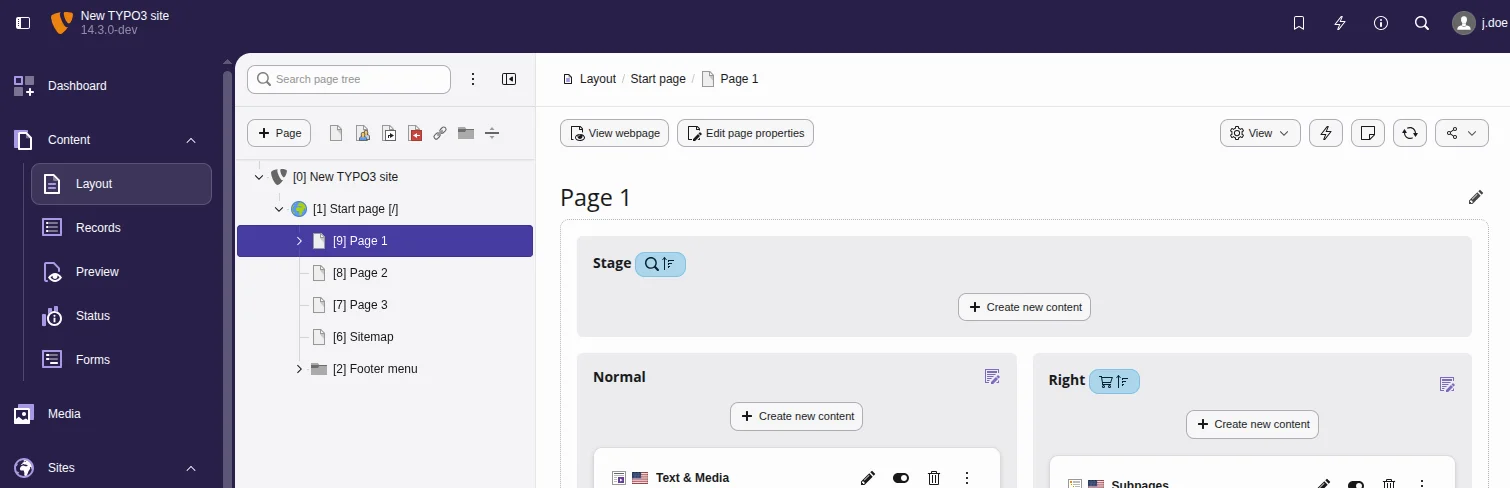
In the TYPO3 backend, open the "Content > Layout" module. There you'll find the page tree with all visible and hidden pages. Select a page to see its content areas and elements. Export or document the structure so you don't overlook any important sections later.
(Note: in older TYPO3 versions, this module was called "Web > Pages." It was renamed to "Content > Layout" in TYPO3 v14. Your view will look different depending on your setup, but the structure works the same way.)
Next, check the most important content types. Open the "Content > Record" module, select a page or storage folder, and you'll see a list of all records stored there, grouped by type. Depending on your TYPO3 setup, these could include news, downloads, forms, categories, frontend users, or custom content elements. Additional extensions may use their own data tables as well.
(Note: in older TYPO3 versions, this module was called "Web > List." It was renamed to "Content > Record" in TYPO3 v14. The example here shows Frontend Users, but the same module displays all record types in your installation, such as news, forms, or downloads.)
Then go through these areas:
- Page tree and URL structure
- Metadata like title and description
- Images, PDFs, and other media
- Forms and recipient addresses
- Tracking codes and consent tool
- Multilingual content
- User roles and approvals
- Extensions and custom features
Also open the "Media" module if it's active. This is where images, PDFs, and documents are often stored. Note which files are still needed and which are just filling space from old content.
(Note: in older TYPO3 versions, this module was called "Filelist." It was renamed to "Media" in TYPO3 v14.)
By the end of this step, you should have a clear picture of what your TYPO3 site actually contains. Without this inventory, the Webflow rebuild quickly becomes confusing.
3. Plan the Webflow CMS structure
Webflow works differently than TYPO3. So don't just blindly copy the old page tree. First, plan which content should be static pages and which should be CMS collections.
Static pages work best for areas like the homepage, about us, contact, or individual service descriptions. Recurring content usually belongs in the Webflow CMS.
Typical CMS collections include:
- Blog posts
- Case studies
- Team profiles
- Locations
- Services
- Events
- Downloads
- Job listings
Create a new project in Webflow and open the "CMS" section at the top. Use "New Collection" to create your first collection. Then define all the fields you need: title, slug, short description, main image, rich text, category, or SEO description.
.webp)
Pay attention to clear field names. A marketing team understands "short description for cards" better than "Teaser Text 2." These small decisions make future maintenance significantly easier.
Plan a template for each collection as well. In Webflow, you'll find the collection templates in the left page panel. There, you build the layout once for all entries of that type.
4. Export and prepare data from TYPO3
For the data export, there are multiple approaches depending on your TYPO3 version and setup. Content from news extensions or custom tables can often be prepared via the backend, database exports, or specific export functions as CSV.
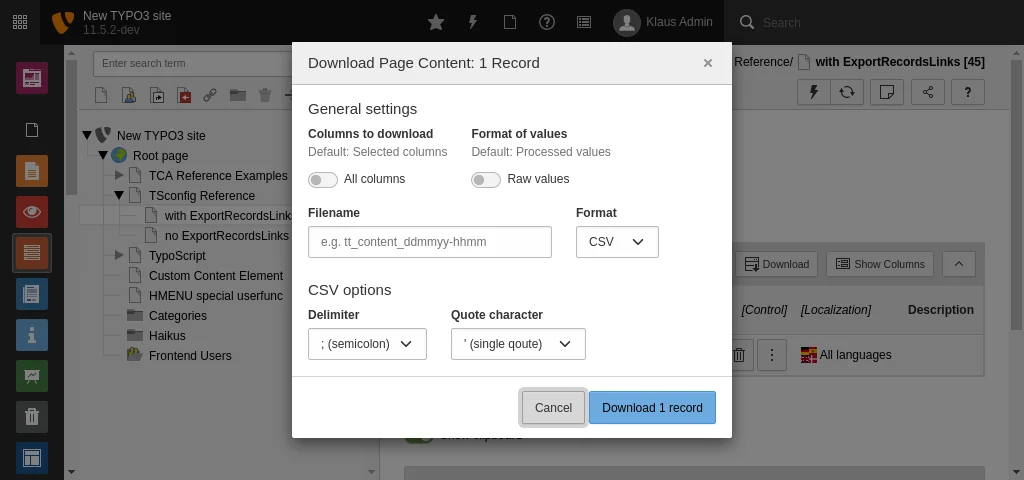
If your TYPO3 backend offers export functions, check the "Content > Record" module first. For more complex setups, you'll often need a developer to pull the relevant tables from the database.
What matters isn't just the export itself, but also the cleanup before importing into Webflow.
Prepare your data like this:
- Remove duplicate or outdated content.
- Standardize titles, categories, and slugs.
- Check for special characters and HTML remnants.
- Assign images and PDFs to the correct entries.
- Fill in missing metadata.
- Place old and new URLs side by side.
Before importing the CSV file into Webflow, create a simple field mapping. This means documenting which TYPO3 field corresponds to which Webflow field. For example, "Seitentitel" becomes "Name," "URL-Segment" becomes "Slug," "Kurztext" becomes "Summary," and "Haupttext" becomes "Rich Text." For images, categories, author names, or SEO data, check in advance where this information should land in the Webflow CMS.
For the import, open the relevant collection in Webflow. There you'll find the import function for CSV files. During import, you map the columns of your file to the Webflow fields. If the mapping is clean beforehand, you avoid incorrect field assignments and unnecessary rework in the collection.
.webp)
Not all TYPO3 data can be transferred cleanly in an automated way. Rich text content, nested elements, and old layout blocks often require manual rework. Plan enough time for that.
5. Rebuild the website in Webflow
Now the new website takes shape. First, decide whether you want to do a 1:1 rebuild of your existing TYPO3 site in Webflow, or use the switch as an opportunity for a fresh design. Many companies create a layout in Figma first, review page structure, components, mobile views, and approvals there, and then transfer the final design into Webflow.
After that, open the Webflow Designer and start by creating your most important pages. Through the "Pages" panel on the left, you create new static pages and review the automatically generated CMS templates.
.png)
Then build the core layout areas:
- Navigation
- Footer
- Hero sections
- Content sections
- Form sections
- Card layouts
- CTA sections
- Blog and case study templates
Use reusable components for elements that appear on many pages. This reduces maintenance effort and prevents inconsistent structures.
Pay attention to responsive views early on. In the Webflow Designer, you can switch between desktop, tablet, and mobile breakpoints. Old TYPO3 websites often have weaknesses on smartphones. The rebuild is a good opportunity to fix these mobile issues.
Forms can be created directly in the Designer. Check field names, required fields, error messages, and recipients. Also clarify before launch where form submissions should go: for example, to HubSpot, another CRM, a newsletter system, or an applicant tracking tool.
For the technical connection and automation, many teams use Zapier, Make, native integrations, or custom APIs. If your setup is more complex, say with multiple forms, lead routing, or layered automations, a specialized partner like bakedwith can help.
If the existing TYPO3 design is due for a complete overhaul anyway, it's also worth comparing specialized Webflow design agencies in Germany.
By the way, if you need some graphic design style inspo, make sure to read this blog first.
6. Migrate content and test
Once pages, collections, and templates are in place, you transfer the content. Static pages are entered manually. CMS content gets imported via CSV or added directly in the collection.
After that, check every important page in the published staging link. Webflow gives you a preview and a temporary project URL. Use this environment before switching the real domain over.
.webp)
Test these points especially:
- Is all content complete?
- Are headings and paragraphs correct?
- Do internal links work?
- Are images loading properly?
- Are forms technically and functionally correct?
- Do title tags and meta descriptions match?
- Does the mobile view work properly?
- Do important pages load fast enough?
- Is the consent tool working correctly?
- Are tracking and analytics cleanly integrated?
.webp)
Take the time to walk through real example paths. A visitor comes in from Google to a service page, clicks on a case study, opens a form, and sends a request. If this path works, you're closer to the real day-to-day experience than with just page-by-page checks or automated testing.
7. Launch and monitor
Before the launch, you need a clear checklist. The most important item is the domain switchover. In Webflow, you'll find the domain settings in the project under "Site settings" and then in the "Publishing" section. There you add your domain and receive the necessary DNS records. You then set these up with your domain provider.
.webp)
Before the final publishing, these points should be done and checked:
- 301 redirects are in place.
- The sitemap is reachable.
- Noindex settings have been reviewed.
- Forms have been tested.
- Cookie consent is active.
- Analytics and Tag Manager are running correctly.
- The most important pages have been manually checked.
- A rollback plan is ready.
After launch, monitor the new Webflow site for several weeks. Check for crawling errors, ranking changes, form completions, load times, and user feedback. Many small corrections only become visible once real visitors start coming in.

If you need a team to do all these for you within a budget, read our blog on affordable website services.
What to watch out for when migrating from TYPO3 to Webflow
The migration steps above show you the process. The following best practices help you avoid common mistakes. They often determine whether the TYPO3-to-Webflow switch goes smoothly or creates unnecessary work after launch.
If you want to be on the safe side, magier can guide your migration from the initial planning all the way to launch. The team brings experience from over 100 website projects, is a Webflow Premium Partner, and has completed projects for companies like Kertos, Enpal, Upvest, and plancraft, among others.
Content audit: don't carry everything over
Old TYPO3 systems often contain a huge number of pages. Some of them used to perform well, while others have been sitting unnoticed in the page tree for years.
Don't take everything with you. Evaluate content by usefulness, freshness, and search performance. Pages with traffic, leads, backlinks, or legal significance deserve more attention than old news articles with no relevance in 2026.
Good candidates for a rework are pages with outdated content but strong rankings. Bad candidates are duplicate content, old campaign pages, and irrelevant downloads.
Redirect mapping: protect your SEO value
During a migration, URLs frequently change. If old TYPO3 URLs lead to dead ends, you lose visibility, backlinks, and trust from your users and customers.
So before launch, create a redirect list. On the left side, you have the old URL. On the right, the new Webflow URL. For important pages, use 301 redirects. In Webflow, you can set these up in the project settings under the publishing and redirects section.
Test the most important redirects manually. Pay special attention to pages with significant organic traffic, backlinks, campaign visits, and internal links.
CMS structure: don't rebuild Webflow like TYPO3
Many migrations fail because old complexity gets copied into a new system. That's rarely a good idea.
Webflow works best when you structure content clearly. Use collections for recurring types and static pages for areas that need individual design. Avoid nested edge cases that nobody will want to maintain later.
Here's a good rule of thumb: if your marketing team can explain the content type, the CMS structure is probably clear enough.
"In our experience across numerous projects, one of the biggest levers in migrations often isn't the tool switch itself but the cleanup of the old structure. Webflow works best when teams think about content more simply: clear collections, understandable field names, and fewer special cases. Rebuilding the TYPO3 complexity 1:1 means missing out on a large part of the potential advantage."

Marketing team: test and train early
Migrating from TYPO3 to Webflow isn't just a technical project. The switch also changes the daily work of your team. People who have been using TYPO3 for years need to get used to a more visual CMS, even if it is more intuitive.
So bring your marketing team in early. Let them test typical tasks: creating a blog post, swapping an image, duplicating a landing page, changing an SEO title, editing form text.
A short training session is often enough if the Webflow structure is well planned. What matters are clear rules for images, headings, links, metadata, and publishing.
Multilingual support: decide cleanly upfront
TYPO3 is strong with large multilingual structures. If your company needs to map many countries, roles, and approval processes on the website, one of your very first steps should be checking whether and how Webflow can actually meet your requirements.
For many marketing websites, the standard CMS works well. For very complex setups, Webflow Enterprise can be worth considering. Specifically when your setup aligns more with classic TYPO3 use cases: larger teams, stricter approvals, SSO, multiple languages, higher content volumes, and a greater need for support or security controls. Webflow Localization can also be useful in the Enterprise context when multiple sites or locales need to be bundled cleanly.
Still, the evaluation is important. Webflow Enterprise doesn't replace a full DXP for every scenario. If you need complex multi-brand structures, very granular governance processes, or advanced personalization, you should walk through those requirements in detail before making the switch.
Decide before the migration whether each language needs its own pages, its own CMS entries, or a structured localization setup. Late changes to multilingual architecture almost always cost significant time.
Integrations: check critical tools early
Many TYPO3 websites are connected to other systems. These include CRM, newsletter tools, applicant portals, analytics, consent tools, DAM systems, or custom APIs.
List all integrations before the rebuild. Then decide what's still needed, what can be replaced, and where an external connection makes sense.
Webflow can connect with many tools. But you should still verify critical processes before launch. A beautiful form is worthless if the inquiry never reaches sales.
Data privacy: sort out GDPR, consent, and DPA before launch
Webflow is a solid option for many DACH companies that don't want to compromise on data privacy. A DPA (Data Processing Agreement) can be signed, EU hosting options through the CDN are available, and a cookie consent tool can be integrated easily. This means Webflow comes with the essential building blocks that matter for companies in Germany, Austria, and Switzerland.
Still, GDPR compliance doesn't happen automatically just because of the CMS. What matters is how you set up Webflow, which tools you integrate, and what data gets processed through the website. Forms, tracking scripts, CRM connections, newsletter tools, and embedded media should all be reviewed before launch.
Pay attention to these points in particular:
- Is a suitable DPA in place for Webflow?
- Have the desired EU hosting options been verified for your setup?
- What personal data is being collected through forms?
- Which third-party tools are running on the website?
- When do tracking scripts fire?
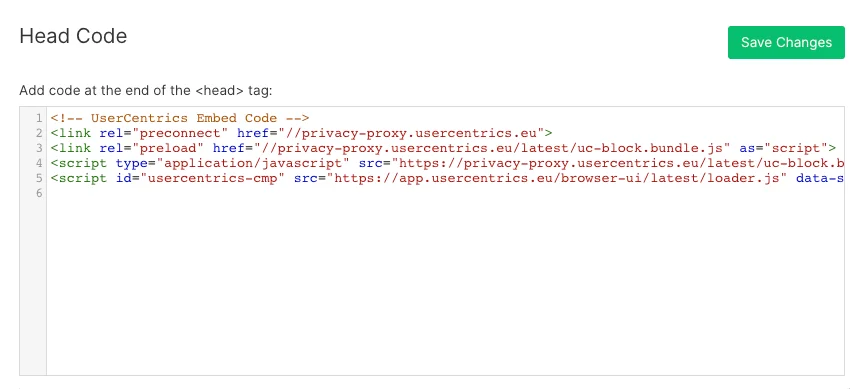
- Is the consent banner properly integrated?
- Are cookies and external scripts only loaded after consent?
- Are the privacy policy and legal notice updated?
- Does the hosting and tool landscape fit your industry?
For healthcare, legal, finance, or the public sector, you should review data privacy even more strictly. Webflow can work here, but the final decision depends on the specific data flow.

Final thoughts
Migrating from TYPO3 to Webflow can be a smart move for many companies. Especially when the old website has become too expensive, too slow, and too dependent on developers, it's worth seriously considering.
Webflow gives marketing teams more control. New pages, content, and campaigns can be created significantly faster after the switch. This saves not just technical coordination time but also improves your ability to react in the market.
But the migration isn't something that runs itself. For an efficient, successful implementation, you need detailed planning, a thorough content audit, a clear CMS structure, complete redirects, testing, and a well-prepared team. Without these foundations, you quickly end up with SEO losses, content gaps, and unnecessary rework.
For companies with extremely complex CMS permission structures, deep custom functionality, or mandatory self-hosting, TYPO3 may remain the better choice. But for modern marketing websites in the mid-market, Webflow is often the more manageable and future-ready platform because of its flexibility.
Want to avoid handling the migration alone? magier supports you as your on-demand Webflow team: from goal setting to data export, from the Webflow build to testing and launch support, we're by your side. You get a clean switch without burdening your internal team with every detail.
FAQ
Yes. For larger setups, Webflow Enterprise offers granular roles, SSO/SAML, higher scaling limits, SLAs, and expanded security and compliance options. For very complex governance or multi-brand requirements, you should verify the specific feature set in advance with Webflow or your implementation partner like magier.
The cost depends on scope, design, number of pages, languages, integrations, and content quality. A small marketing site is significantly easier to migrate than a large TYPO3 system with many extensions and custom features. In addition to the actual Webflow build, plan for a comprehensive audit, SEO measures, redirect analysis, testing, and training.
For day-to-day operations, you typically need less developer support than with TYPO3. Marketing teams can manage content, CMS entries, and many page sections themselves. For the initial build, complex integrations, custom code, or specific tracking setups, technical expertise is still helpful.
Start by inventorying your multilingual content. Determine which languages stay, which pages are translated, and which content needs to be restructured. Then plan the appropriate language structure in Webflow. If you have many countries, roles, and approval processes, a separate evaluation before the rebuild is worthwhile.
Webflow can be used in a GDPR-compliant way if you properly set up contracts, consent, tracking, forms, and third-party tools. What matters here is less about the platform itself and more about the overall data flow of your website. If you operate in a particularly sensitive industry from a data privacy perspective, you should clarify the necessary steps before the migration with your IT team, a legal expert, and/or a data privacy consultant.
Yes. For larger setups, Webflow Enterprise offers granular roles, SSO/SAML, higher scaling limits, SLAs, and expanded security and compliance options. For very complex governance or multi-brand requirements, you should verify the specific feature set in advance with Webflow or your implementation partner like magier.



.avif)
.avif)